Explore 14 Different Types of USB Drives
Published: 26 Nov 2025
USB drives have become part of our daily lives. We use them to save files, transfer photos, and even run software. But did you know there are several types of USB drives? Each type has a distinct purpose. In this article, we’ll examine the various types of USB drives, discuss how to select the right one, and highlight what to avoid when purchasing one.
What is a USB Drive?
A USB drive is a small, portable device for storing data. You can connect it to a USB port on your computer, laptop, or television. It allows you to copy, move, and save files easily. USB stands for Universal Serial Bus—but don’t be concerned by the name. Consider it an innovative, pocket-sized storage tool.
For example, you could use a USB drive to save your school project or to bring your favorite songs with you when visiting a friend.
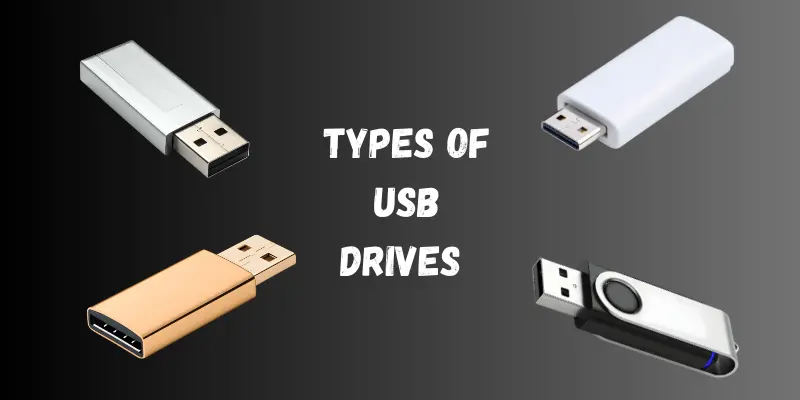
Types of USB Drives
USB drives come in many types, each designed for different devices, speeds, and storage needs. Knowing the types can help you choose the right one for your files, whether you’re backing up data or transferring it between devices.
1. USB Type-A Drive
This is the most common USB connector, appearing on nearly all laptops and desktops. It has a flat, rectangular design and supports USB 2.0, 3.0, and 3.1 speeds. It is utilized in flash drives, keyboards, and mice. It only fits one way, so you must insert it correctly.
2. USB Type-B Drive
The USB Type-B connector is square-shaped and is commonly used in larger devices, such as printers and scanners. It supports both USB 2.0 and 3.0, but it is not widely found in flash drives. It connects your device to a computer, allowing for data transfer. USB-C has largely replaced it in recent years.
3. USB Type-C Drive
USB Type-C is small, slim, and reversible, so that you can plug it in from either side. It allows for fast charging, high-speed data transfer, and video output. It’s found in modern smartphones, laptops, and tablets. USB Type-C is quickly becoming a universal standard.
Learn more about how device performance can affect your USB drive choice in our article Types of Processors
4. Mini USB Drive
Mini USB is smaller than Type-B and was once used in cameras and MP3 players. It supports slower data transfer speeds. It has now become outdated and is rarely used. You may still find it in some old electronics.
5. Micro USB Drive
Micro USB is smaller than Mini USB and was commonly used in older smartphones and tablets. It supports USB 2.0 and sometimes USB 3.0 speeds.
Some flash drives come with a Micro USB connector, allowing them to connect directly to phones. However, most new devices now use USB-C instead.
6. USB 2.0 Drive
This is an older USB standard, supporting speeds of up to 480 Mbps. It works well for transferring small files, such as photos and documents. Most basic USB flash drives use this version. It’s still common but much slower than newer versions.
7. USB 3.0 Drive
USB 3.0 offers much faster speeds—up to 5 Gbps. These drives often have a blue connector for easy identification.
They’re great for transferring large files, such as videos and software. USB 3.0 drives also work with USB 2.0 ports, but at slower speeds.
8. USB 3.1 Drive
USB 3.1 is faster than USB 3.0, with speeds of up to 10 Gbps. It is utilized in high-speed flash drives and external SSDs. This version is ideal for professionals who require quick data transfers. It is available in both Type A and Type C shapes.
9. USB 3.2 Drive
USB 3.2 builds on USB 3.1, supporting data speeds of up to 20 Gbps. It utilizes dual lanes to transfer data more efficiently. These drives are ideal for transferring large files and performing backups. They often require USB-C ports for full performance.
10. USB4 Drive
USB4 is the most recent and fastest USB version, offering speeds of up to 40 Gbps. It features a single port that supports data, charging, and video. USB4 only supports Type-C connectors. It is ideal for high-end devices such as MacBooks and gaming laptops.
11. OTG USB Drive
OTG (On-The-Go) drives can be directly connected to smartphones and tablets. They typically have two connectors: USB-A or USB-C on one side, and Micro USB on the other. These drives allow you to transfer files without using a computer. They are ideal for travel or quick mobile backups.
12. Encrypted USB Drive
Secured USB drives use passwords or fingerprint locks to protect your files. They are ideal for securely storing sensitive personal or business information. Even if it is lost, your data is safe from others. These drives are suitable for professionals and sensitive files.
13. High-Speed USB Drive
High-speed drives use USB 3.0 or higher versions to transfer files quickly. They can transfer gigabytes in seconds, which makes them ideal for large backups. These are ideal for video editors, gamers, or anyone who requires speed. Always check the version before purchasing.
14. Custom-Shaped USB Drive
These drives come in a variety of fun shapes, including keys, pens, and logos. They function similarly to regular flash drives while adding a unique twist. Companies frequently use them for marketing and gifting. Make certain that the design does not impair performance or quality.
How to Choose the Right USB Drive
Here are some quick tips to help you pick the right one:
- Check the device port: Is it USB-A, USB-C, or micro?
- Look at the storage size: 8GB for small files, 32GB+ for photos and videos
- Choose speed wisely: Go for USB 3.0 or higher if you move big files
- Think about safety: Use encrypted drives if you handle private data
- Pick the right shape: Tiny drives for tight spaces; regular size for daily use.
Common Mistakes to Avoid When Buying a USB Drive
Avoid these common mistakes to save time and money:
- Buying too small or too big: Don’t buy 1TB if you only need 8GB
- Ignoring compatibility: Some drives are not compatible with all phones or laptops.
- Choosing style over quality: Fancy designs may lack speed or durability.
- Skipping reviews: Always check what others say before making a purchase.
- Not checking the brand: Cheap, unknown brands can lose your data
Conclusion
USB drives are small but powerful tools. Knowing the different types can help you choose the right one for your needs.
Whether you want to save schoolwork, back up photos, or protect important files, there’s a USB drive that suits your needs.
Frequently Asked Questions [ FAQs ]
The standard USB-A drive is the most common and works with most computers.
The FAT32 file system is appropriate for flash memory devices with smaller capacities (such as memory cards, USB drives, and other storage devices), whereas the NTFS file system is suitable for larger capacity disks.
Here are the different types of USBs:
- USB Type-A
- USB Type-B
- USB Type-C
- Mini USB
- Micro USB
- USB 2.0
- USB 3.0
- USB 3.1
- USB 3.2
- USB4
USB connectors are classified into several types: USB-A, USB-B, USB-C, Micro-USB, and Mini-USB. Each type has a distinct design and applications, with USB-C being the most recent and versatile.
A USB drive is a small, portable device used to store and transfer files like photos, videos, and documents. You can plug it into a computer, laptop, or smart TV using a USB port.






- Be Respectful
- Stay Relevant
- Stay Positive
- True Feedback
- Encourage Discussion
- Avoid Spamming
- No Fake News
- Don't Copy-Paste
- No Personal Attacks
- Be Respectful
- Stay Relevant
- Stay Positive
- True Feedback
- Encourage Discussion
- Avoid Spamming
- No Fake News
- Don't Copy-Paste
- No Personal Attacks
